Timeline & PI Planning
The Timeline module provides a collaborative Program Increment (PI) planning and sprint scheduling engine. Designed for agile engineering teams, it bridges high-level architectural roadmaps with tactical delivery schedules by combining drag-and-drop sprint boards, real-time team capacity management, date-based milestones, and interactive Gantt charts.
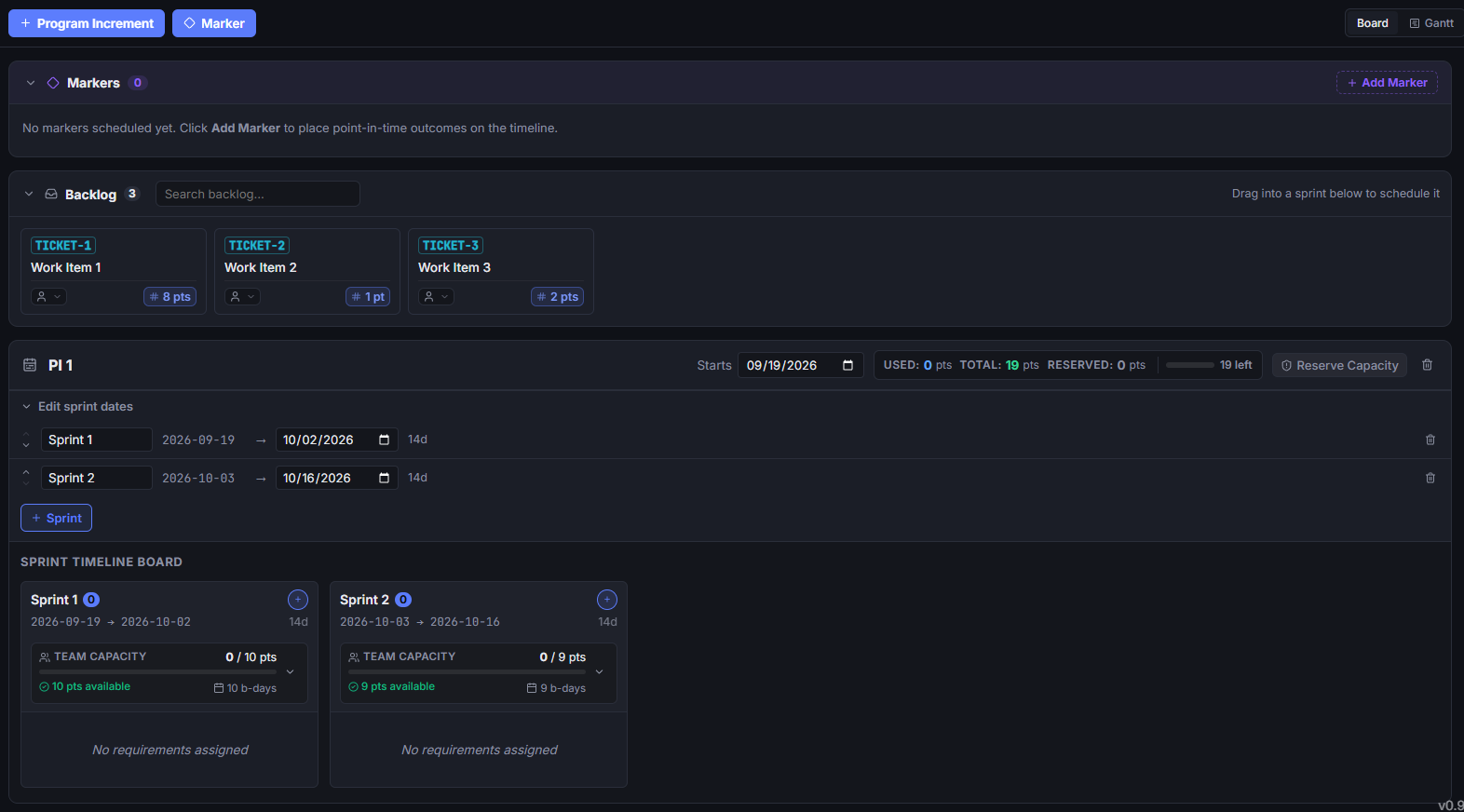
1. Program Increments & Sprints
Program Increments (PIs) provide multi-sprint planning intervals (typically 8–12 weeks) that align engineering delivery with architectural milestones.
Adding a Program Increment
- In the Timeline toolbar, click + Program Increment (or + PI).
- The editor automatically initializes a new planning interval (e.g.,
PI 1,PI 2) starting seamlessly on the day following the previous PI's conclusion. - Sprints within the PI default to standard two-week (14-day) durations.
Sprint Management & Cascading Dates
- Adding Sprints: Click + Sprint on any PI to add subsequent sprints.
- Adjusting Durations: Modify a sprint's end date directly from the sprint header date picker.
- Automatic Cascading: Start and end dates for subsequent sprints automatically adjust when an earlier sprint is lengthened or shortened, keeping the timeline perfectly contiguous without manual re-calculation.
2. Milestones & Date-Based Markers
Milestones represent critical temporal events, releases, regulatory checkpoints, and architectural gates across the delivery timeline.
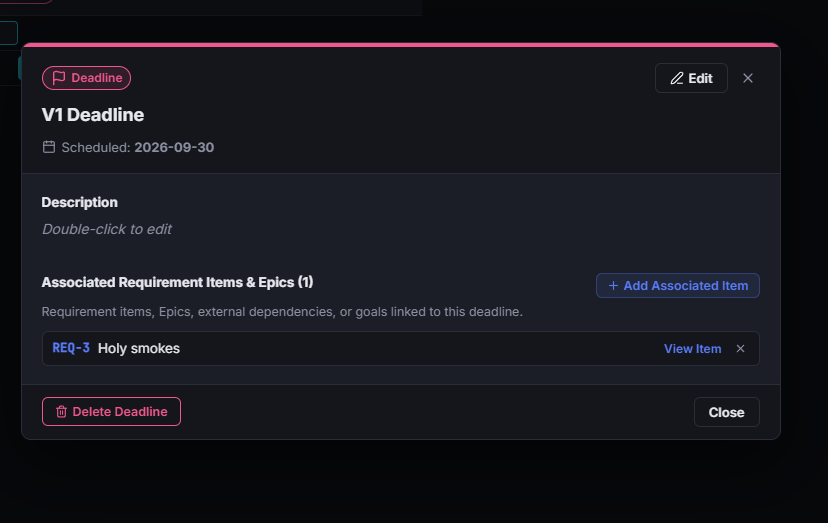
Creating a Milestone Marker
- Click + Marker in the timeline toolbar or click the milestone indicator on any sprint column.
- Select the milestone category:
- Release (
📦): Planned software or capability release. - Deadline (
🚩): Contractual, regulatory, or external target deadline. - Review (
📋): Architecture, security, or stakeholder review gate. - Launch (
🚀): Production go-live or public deployment. - Code Freeze (
❄️): Stabilization cutoff date prior to deployment. - PI Boundary (
📅): Planning interval transition marker.
- Release (
- Enter a title, scheduled calendar date, optional version tag (e.g.,
v2.4.0), and descriptive markdown notes. - Associate specific requirement items or delivery tickets with the milestone.
Milestones appear as distinctive colored point-in-time indicators on sprint headers and Gantt chart timelines.
3. Workable Item Assignment & Scheduling
The timeline board features a backlog drawer for scheduling unassigned actionable items (Tickets, Workable Requirements, etc.) into target sprints.
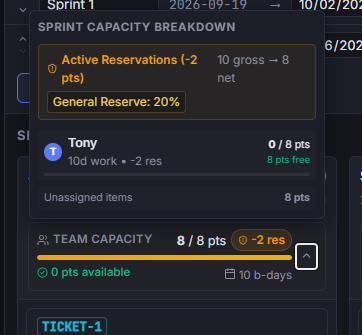
Scheduling Items
- Backlog Drawer: Open the Backlog drawer on the left to view all unassigned workable items.
- Drag-and-Drop: Drag tickets directly from the backlog into any sprint column, or drag items between sprints to re-sequence work.
- Inline Editing: Set story point estimates, update status (
To Do,In Progress,Done), and assign team members directly on the sprint card.
Real-Time Impact Preview
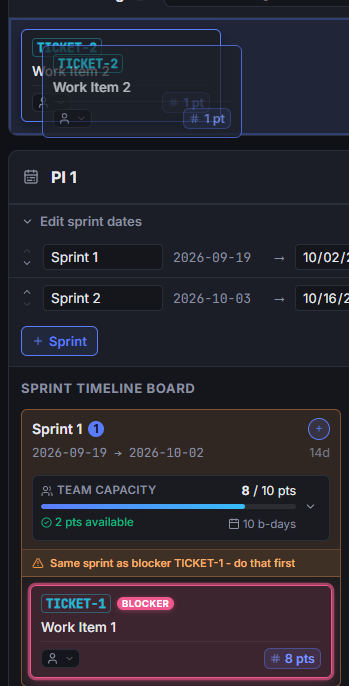
When dragging items across the board, the drop target displays a live impact preview.
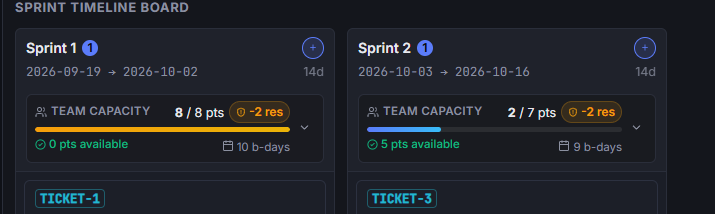
The preview highlights projected point totals, updated capacity percentages, and immediate warning badges if the assignment introduces dependency order violations.
4. Capacity Planning & Reservations
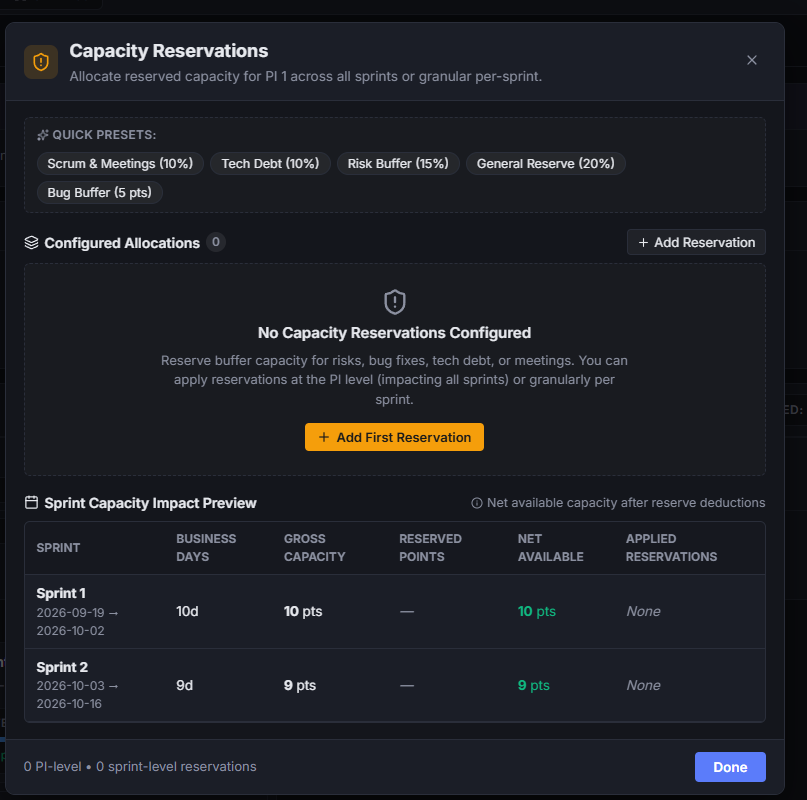
Effective PI planning requires accounting for operational overhead, maintenance, and uncertainty rather than allocating 100% of raw developer bandwidth to new features.
Configuring Capacity Reservations
Click Reservations on any PI to configure capacity buffers.
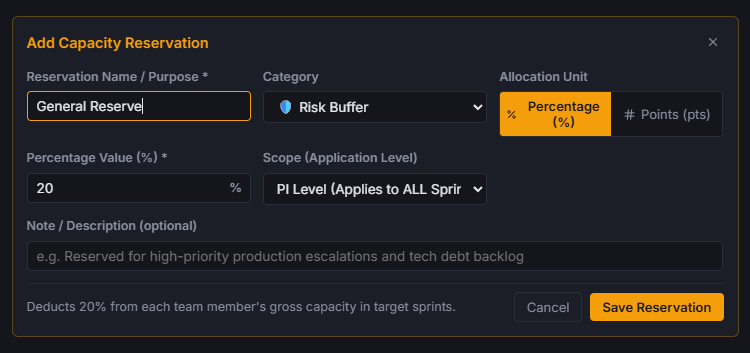
- Reservation Units: Allocate buffers as Story Points or as a Percentage of Total Capacity (e.g.,
20%). - Categories: Tag reservations for specific operational needs:
- Risk Buffer: Absorbs scope discovery and estimation variance.
- Bugs & Maintenance: Accounts for incoming defect triage and production support.
- Technical Debt: Dedicated refactoring, dependency upgrades, and infrastructure hardening.
- Meetings & Ceremonies: Sprint planning, demos, and organizational overhead.
- Scope: Apply reservations globally across all sprints in the PI, or target individual sprints (e.g., reserving extra hardening capacity during a pre-release sprint).
Live Sprint Capacity Bar
Every sprint column displays a live capacity gauge comparing planned story points against available net capacity. The bar updates dynamically as tickets are added, resized, or reassigned.
5. Board View vs. Gantt Chart View
The timeline provides dual viewing modes tailored for sprint-level execution and executive roadmapping.

Switching Modes
Click the view toggle in the toolbar to switch between:
- Board View: Columnar view organized by Program Increment and Sprint, optimized for backlog grooming and card dragging.
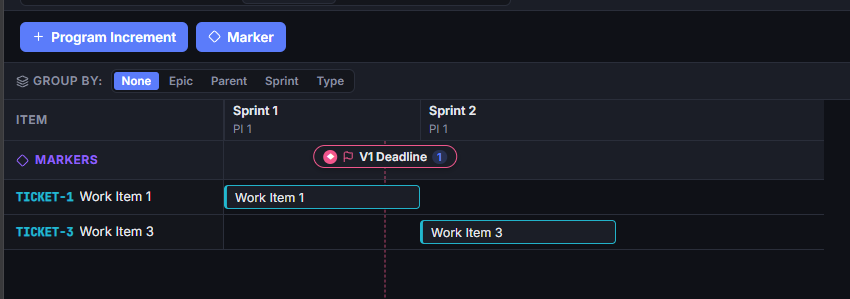
- Gantt Chart: Horizontal timeline visualizing work streams, epics, and milestone deadlines across months and quarters.
Inferred Epic Scheduling
The Gantt chart automatically computes start and end spans for high-level Epics based on the scheduled dates of their underlying child tickets:
- Automatic Date Spans: An Epic's timeline bar spans from the start of its earliest child ticket's sprint to the conclusion of its latest child ticket's sprint.
- Epic Filtering: Use the Epic filter dropdown in the toolbar to isolate a single initiative across the timeline.
6. Dependency & Blocker Visualization
Scheduling mistakes, such as scheduling a dependent ticket before its prerequisite is completed, are flagged automatically.
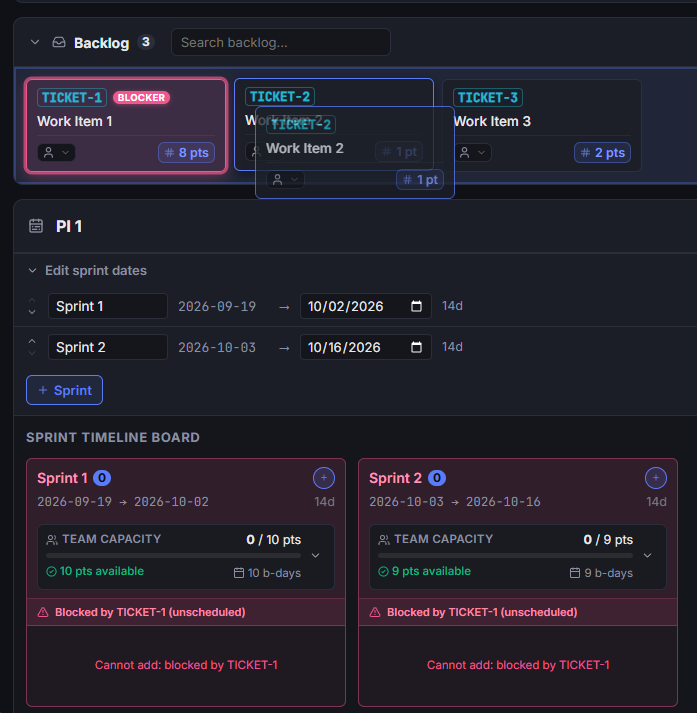
- Schedule Conflict Warnings: If Ticket B depends on Ticket A, but Ticket B is placed in an earlier sprint than Ticket A, the system flags the conflict with a visual warning badge (
⚠️). - Risk Indicators: Hovering over conflict badges displays the exact relationship chain and recommends re-scheduling adjustments.
7. Collaborative PI Planning
During team-wide PI planning sessions, multiple engineers, architects, and product managers can work on the timeline simultaneously:
- Live Peer Presence: Colored presence avatars on sprint cards and detail modals show which items other participants are currently inspecting or editing.
- Zero-Conflict Sync: Sprint re-ordering, ticket assignments, and capacity adjustments propagate instantaneously across all connected clients via peer-to-peer WebRTC signaling.